
What are the next steps?
Below is the list of information we need from you to style your Freshdesk portal.
If you have a brand/styling guideline, please share that with us.
Color Preferences
Please provide the color codes in hex format. If you’re not sure if you have all the color codes, don’t worry – we’ll use refer to your branding guideline or how your main website is styled.
General – this is applied throughout the portal.
- Body Background Color
- Light Background Color
- Text Color
- Link Color
- Hover Color
- Button Color
- Shadow Color
- Search Background Color
Header – this is applied specifically to the portal header
- Text Color
- Button Color
- Background Color
Hero – this is applied to the hero/main image on the portal homepage
- Title Color
- Hero Mask Color
Custom Blocks – this is applied to the custom blocks component on the portal homepage
- Background Color
Footer – this is applied to the footer area of the portal
- Text Color
- Background Color
- Social Icon Color
- Social Icon Background Color
Labels and URLs
Our themes come with custom components that can be updated with custom label and URLs. Below is the list of labels/text and URLs that we can configure.
- Help Center Label – if applicable this is referring to the text displayed next to the logo in the header.
- Header Custom Links – This is referring to the links displayed on the header in addition to the standard links to submit a request and login. Please provide us with the labels and URLs.
- Search Placeholder – this is the placeholder text displayed within the search text field.
- Popular Search – this is referring to the search links displayed below the search text field on the hero’s homepage. We can have up to five popular search keywords.
- Hero Title – this is the main text displayed in the hero component in the portal homepage.
- Custom Block Titles, Custom Block Descriptions & URLs (6) – this is the custom blocks component displayed in the portal homepage
- Custom Video ID & Title (4) – if applicable this is the Youtube Video IDs displayed on the portal homepage.
- Footer Links and Text – this is referring to links and text in the footer area.
Images – please provide us with the URLs to the images needed for the Hero Image and Custom Block Icons. These images need to be hosted on a web-server since Freshdesk does not provide us with a way to store images. We can host these images on our web server if you’d prefer.
Custom Fonts – If you are using a custom font, please send us the font file. This usually comes in WOFF, OTF, or TTF format.
Website Section Overview
Below is a list of information to help you understand website sections.
Allowing you to edit, replace, and add content with ease and clarity..
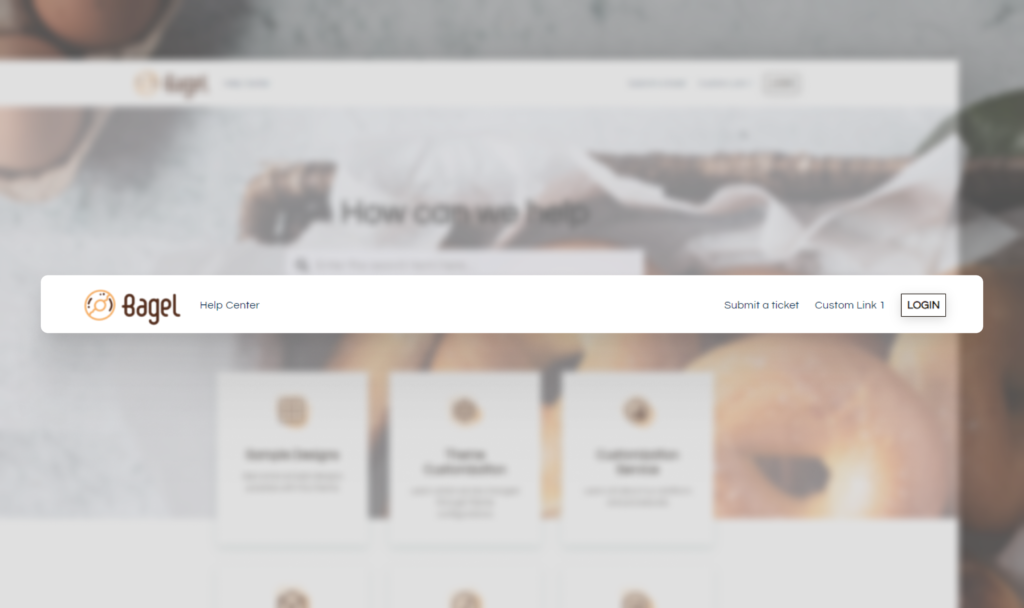
Header
The header is located at the top of the website and typically contains the website’s logo, navigation menu, and sometimes additional elements like login and submit a ticket.
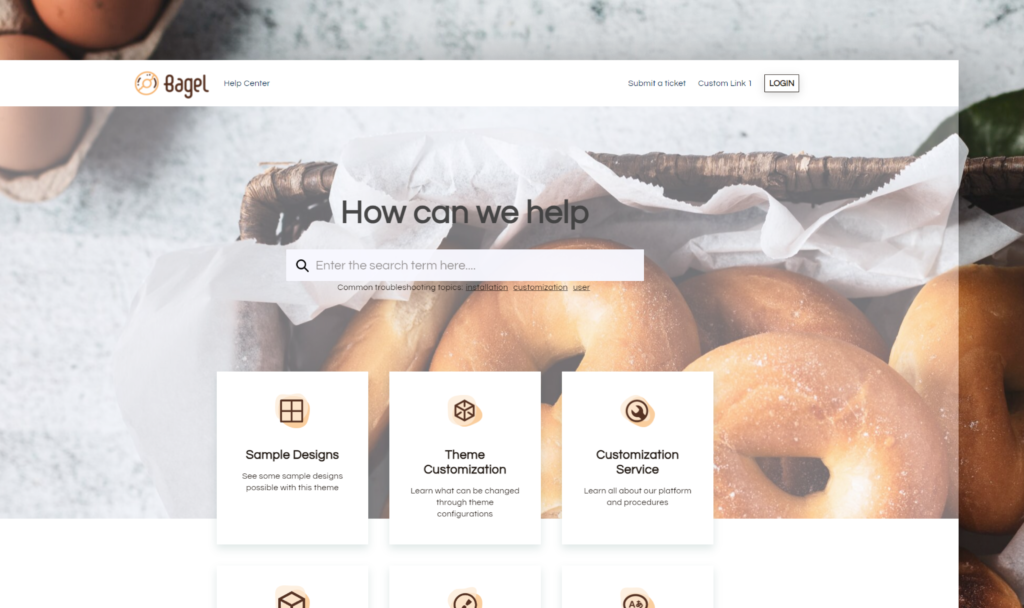
Hero Image
The hero image is a large, visually appealing image or banner placed prominently on the website’s homepage. It aims to grab the user’s attention and convey the website’s main message or showcase a key product or service.
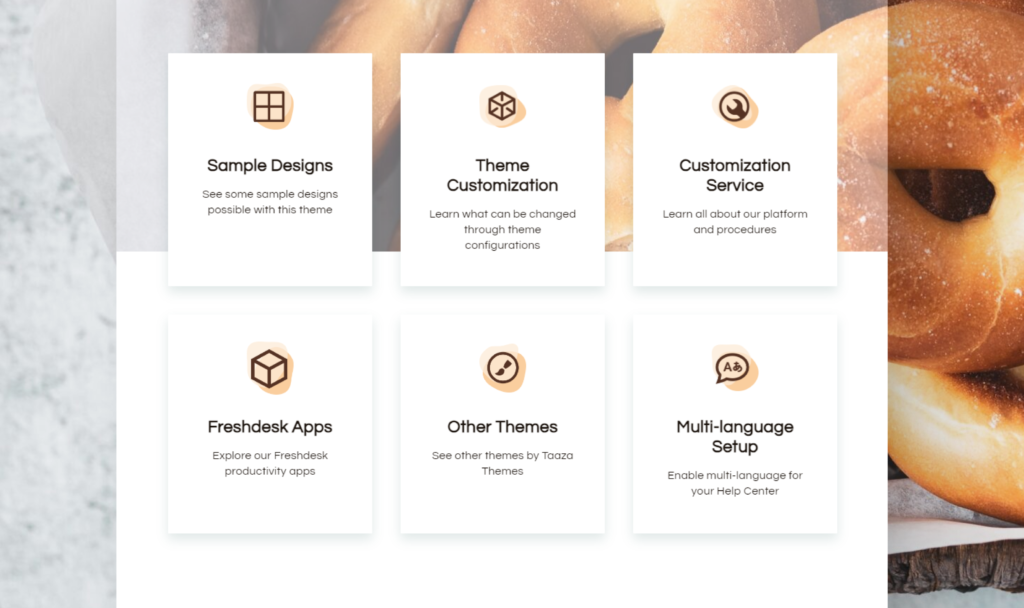
Custom Block
Custom blocks refer to sections on a website that are unique and tailored to specific content or functionality. These blocks are designed and developed to showcasing products, or presenting other custom content.
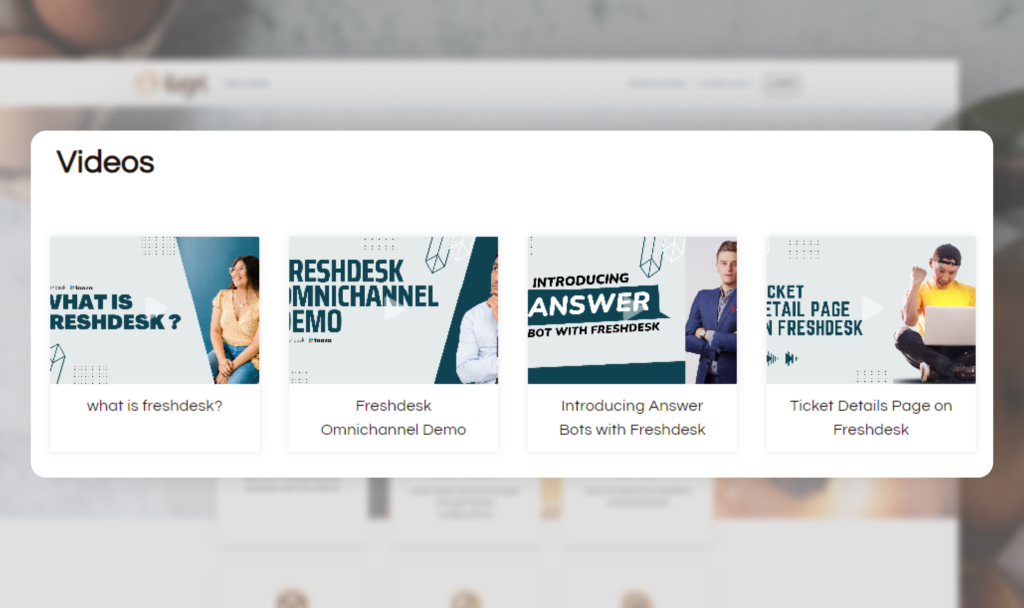
Video Blocks
Video blocks are sections of a website that incorporate video content. They can be used to provide product demonstrations, showcase testimonials, deliver informational content, or engage users with multimedia elements. Videos can be embedded directly on the webpage.
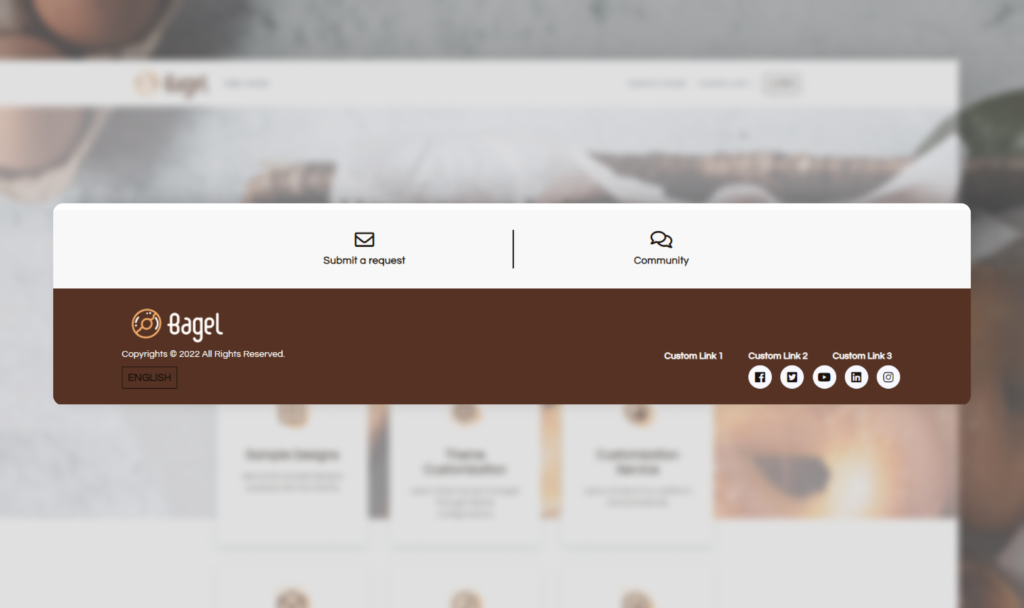
Footer
The footer is located at the bottom of the website and usually contains additional navigation links, contact information, copyright notices, legal disclaimers, and sometimes social media icons or newsletter signup forms.